
Post-Processed Kinematic (PPK) Survey Data with Emlid Studio
Published:
This post provides a simple step-by-step guide on how to perform Post-Processed Kinematic (PPK) for survey purposes.
In many field situations, Real-Time Kinematic (RTK) positioning is not always available. RTK requires stable internet infrastructure, additional hardware, and sometimes paid correction services. This is not always practical for agricultural fields or remote areas.
Fortunately, PPK provides a reliable alternative. With PPK, you only need one GNSS receiver (as a rover) in the field. The correction data can later be downloaded from publicly available CORS (Continuously Operating Reference Stations).
This tutorial explains how to perform PPK using:
- Emlid Reach RS3
- Base station data from CORS Network (NYWL station in this tutorial)
- Emlid Flow (mobile app)
- Emlid Studio (desktop software)
The software versions used in this tutorial:
- Emlid Studio v1.9 (Windows 11 64-bit)
- Emlid Flow v14.8 (iPhone iOS 18.5)
Other versions may look slightly different but the workflow is the same.
Terminology
For people new to GNSS, here are several key terms:
- GPS: The satellite navigation system operated by the United States. It is only one of several global navigation systems.
- GNSS: Global Navigation Satellite System. This includes multiple satellite systems such as: GPS (USA), GLONASS (Russia), Galileo (EU) and BeiDou (China). Modern receivers like the Reach RS3 use all systems together for higher accuracy.
- RTK (Real-Time Kinematic): A positioning technique that receives correction data in real time from a nearby base station.
- PPK (Post-Processed Kinematic): A positioning technique where the correction data is applied after the survey, using recorded GNSS logs.
- Rover: The GNSS receiver that you carry in the field to collect survey points.
- Base station: A fixed GNSS receiver with known coordinates. For PPK we typically use publicly available CORS stations.
- UTC Time: A global time standard used by GNSS systems. All satellite data is recorded in UTC time, not local time.
Pre-requisite
- Hardware:
- Software:
- Emlid Studio (on PC)
- Emlid Flow (mobile)
- Data source:
- Base station data from the NOAA CORS Network
Getting Start
Step 0. Before starting the survey, find a nearby CORS station using the NGS Web Map. The distance between your rover and the base station strongly affects the accuracy.
| Distance | Quality |
|---|---|
| 0–10 km | Best |
| 10–20 km | Very good |
| 20–40 km | Acceptable |
| 40–60 km | Not recommended |
| >60 km | Usually unreliable |
In this tutorial, we use the ⌈NYWL⌋ station since it is closet to Cornell AgriTech campus. You need to select the one that is closet to you.
Step 1. Connect your phone to the GNSS receiver using Emlid Flow, make sure the GNSS receiver is logging raw RINEX data, and create survey project in ⌈Survey⌋. RTK correction is NOT required during the survey.
You might also find this helpful: How to log data for PPK
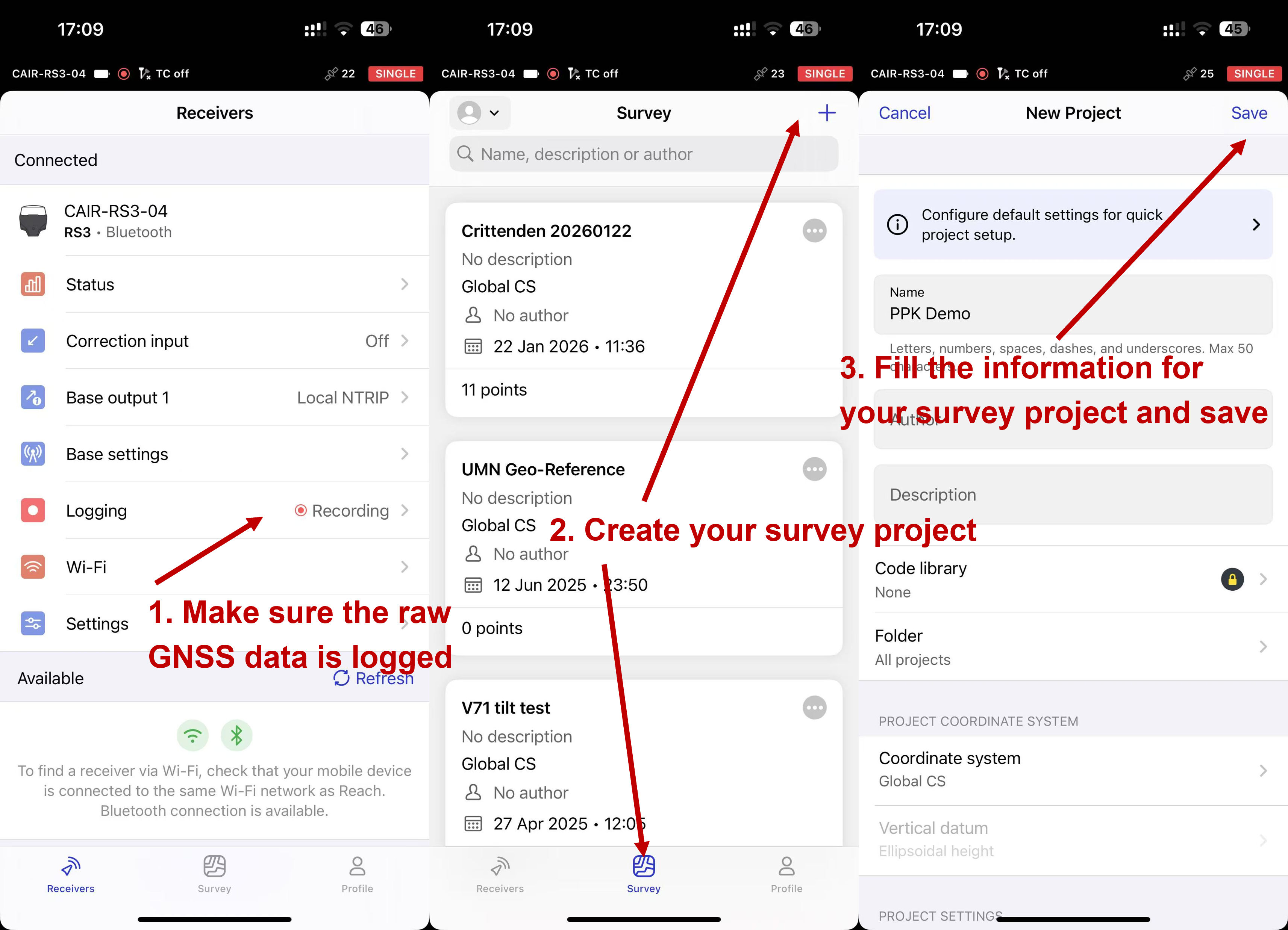
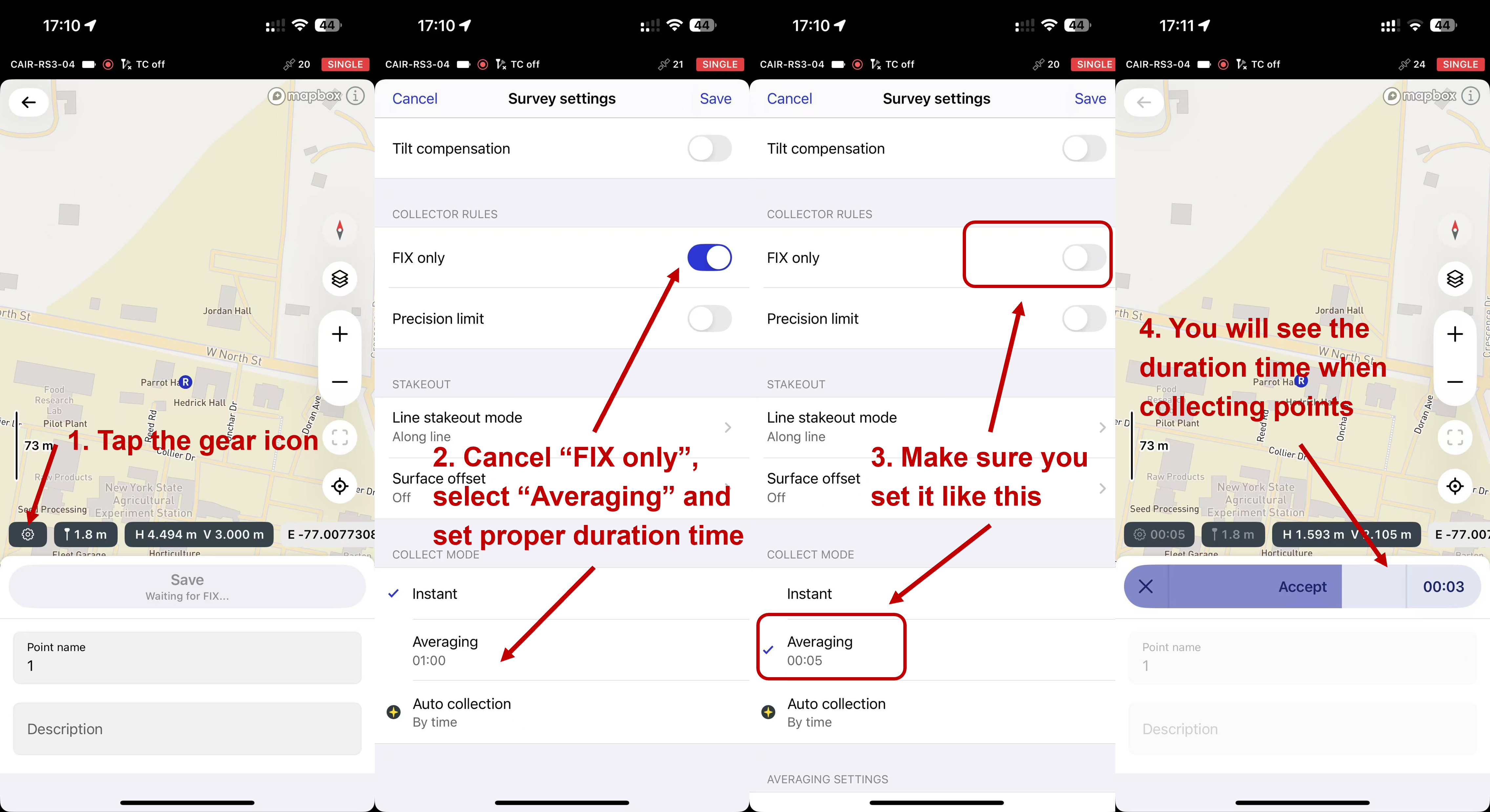
Step 2. Tap the ⚙️ gear icon to configure survey settings
FIX ONLY: OffCOLLECT MODE: Averaging, 5s
Then start the survey.
Why averaging is important:
CORS stations usually record GNSS data every 5 seconds. If you collect survey points shorter than the base station sampling interval, the PPK software may not have enough data to compute corrections.
General rule: Averaging duration ≥ base station sampling interval
Example: If the base station sample rate is **8 seconds**, set averaging to ≥8 seconds
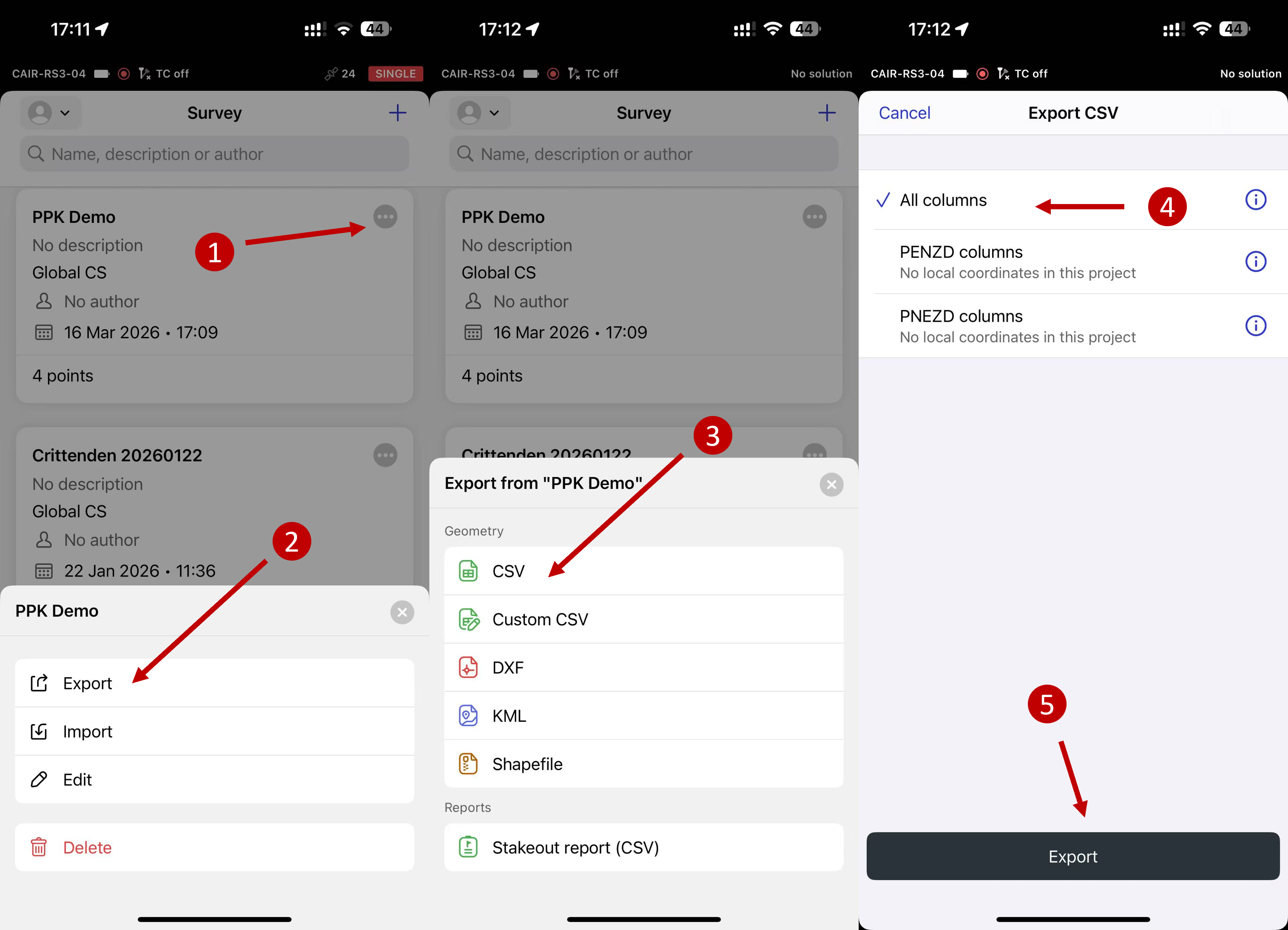
Step 3. Export your survey project from Emlid Flow on your phone as a CSV file. This file contains the raw coordinates recorded in the field. Later, PPK will correct these coordinates.
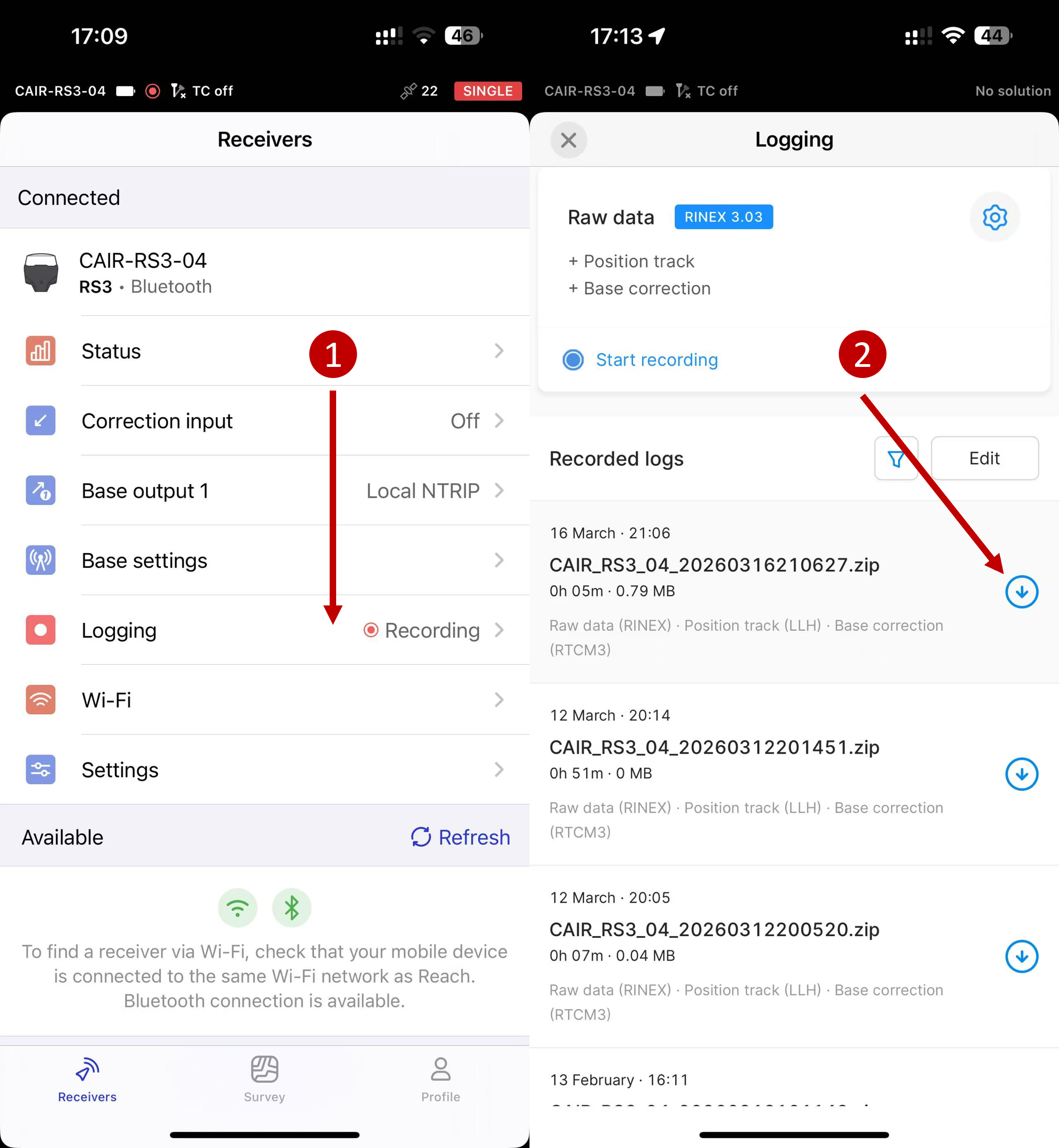
Step 4. Download the raw GNSS log (RINEX files) from your receiver (rover) on your phone. Typical files include:
xxxx.yyO(observation file)xxxx.yyP(navigation file)xxxx.yyB(backup file)
The files we need are:
.yyO.yyP
| File | Purpose |
|---|---|
| .yyO | Rover observation data |
| .yyP | Satellite navigation data |
The number yy represents the year (e.g., .26O → 2026).
Step 5. Download the RINEX observation data covering your survey period from the selected CORS station. - Option 1: Go to the detail page of your selected base station, and click ⌈Quick Data Download⌋. - Option 2: Download from NCN Data and Product.
Check the supplementary at the end of this tutorial for details about how to select correct data files.
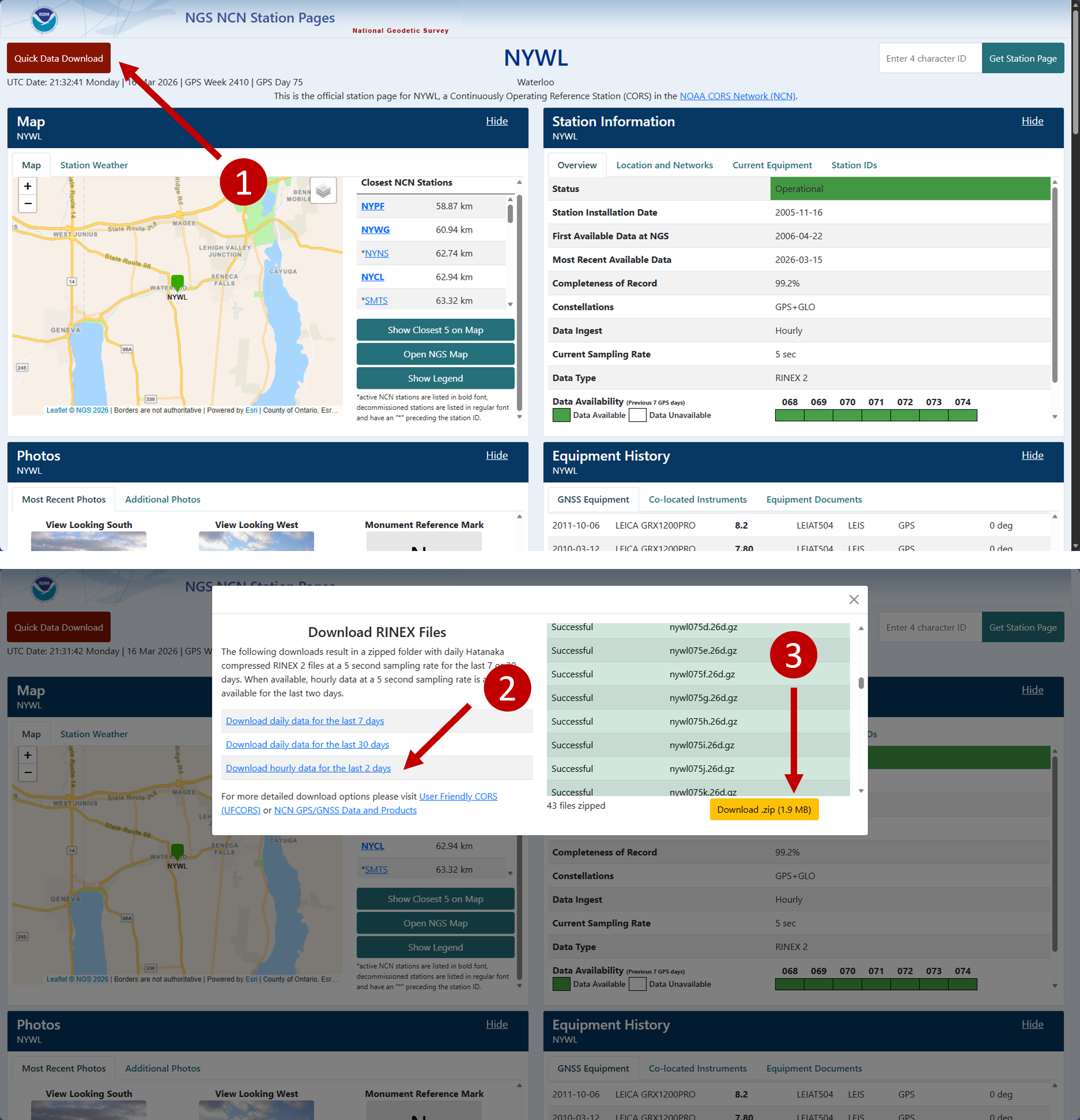
Option 1: Download data directly the selected base station page
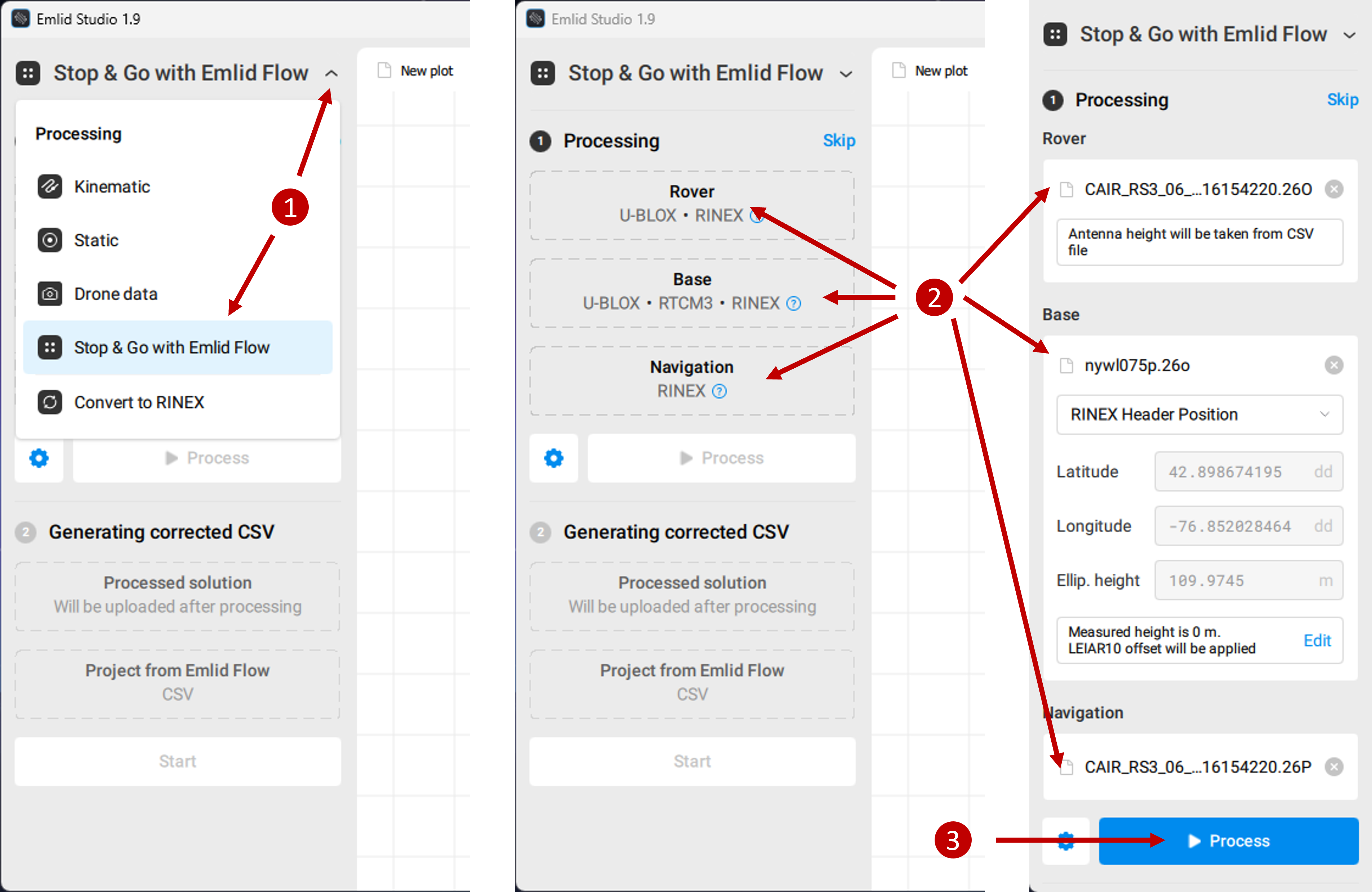
Step 6. Launch Emlid Studio, select ⌈Stop & Go with Emlid Flow⌋, and import your Rover logged RINEX data, Base RINEX observation data and Sattelite Navigation data to the corresponding places. Specifically,
- Rover:
.yyOfile from your GNSS rover logged RINEX data - Base:
.yyOfile from CORS RINEX observation data - Navigation:
.yyPfile from your GNSS rover logged RINEX data
Click ⌈Process⌋ to run PPK. Once it is done, you will see the trajectory of your GNSS receiver in centermiter level.
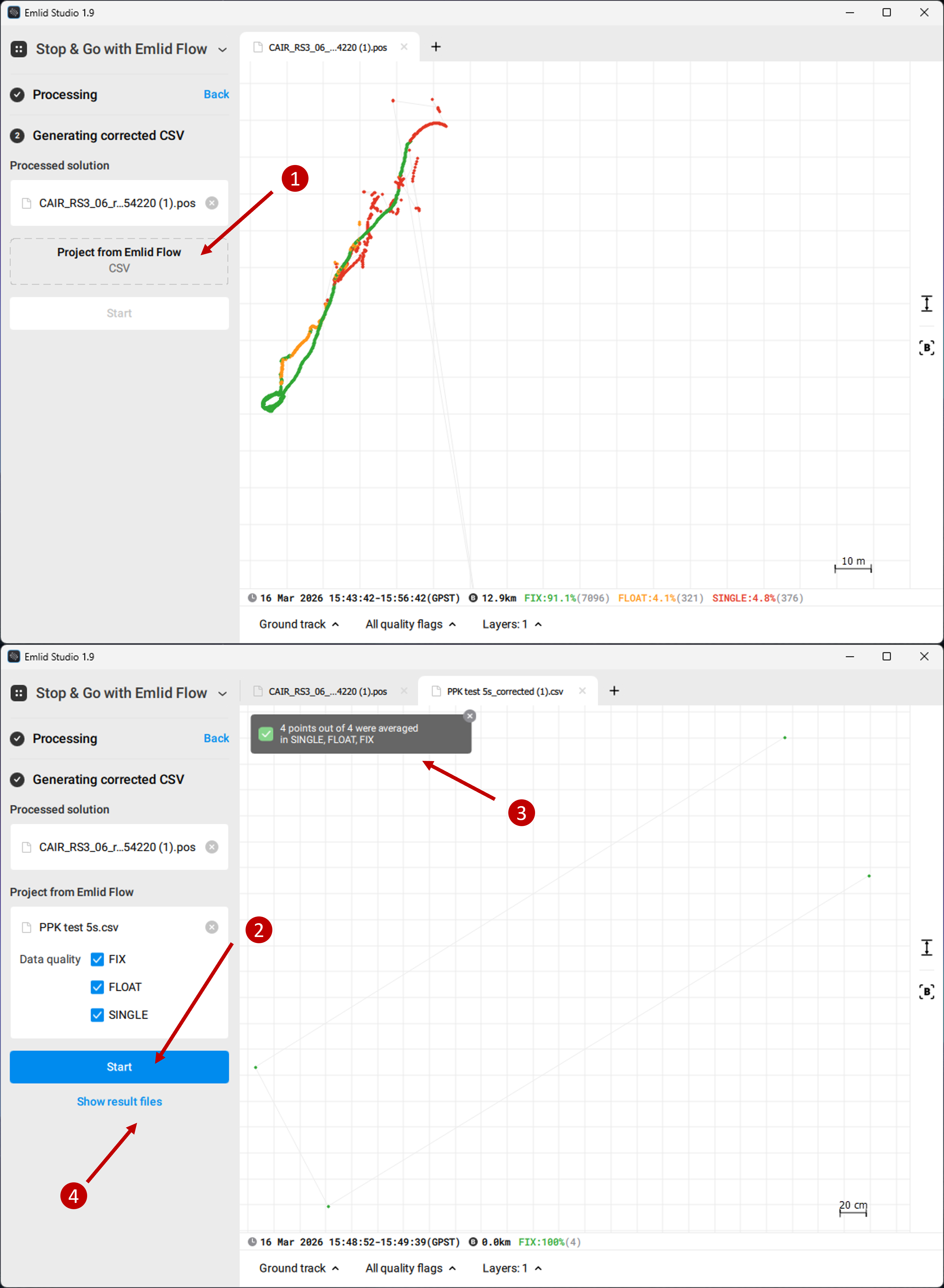
Step 7. Import your survey CSV file and generate corrected CSV using PPK. The generated files will be saved in the Rover logged RINEX data folder by default, or you can also find it by clikcing ⌈Show result files⌋
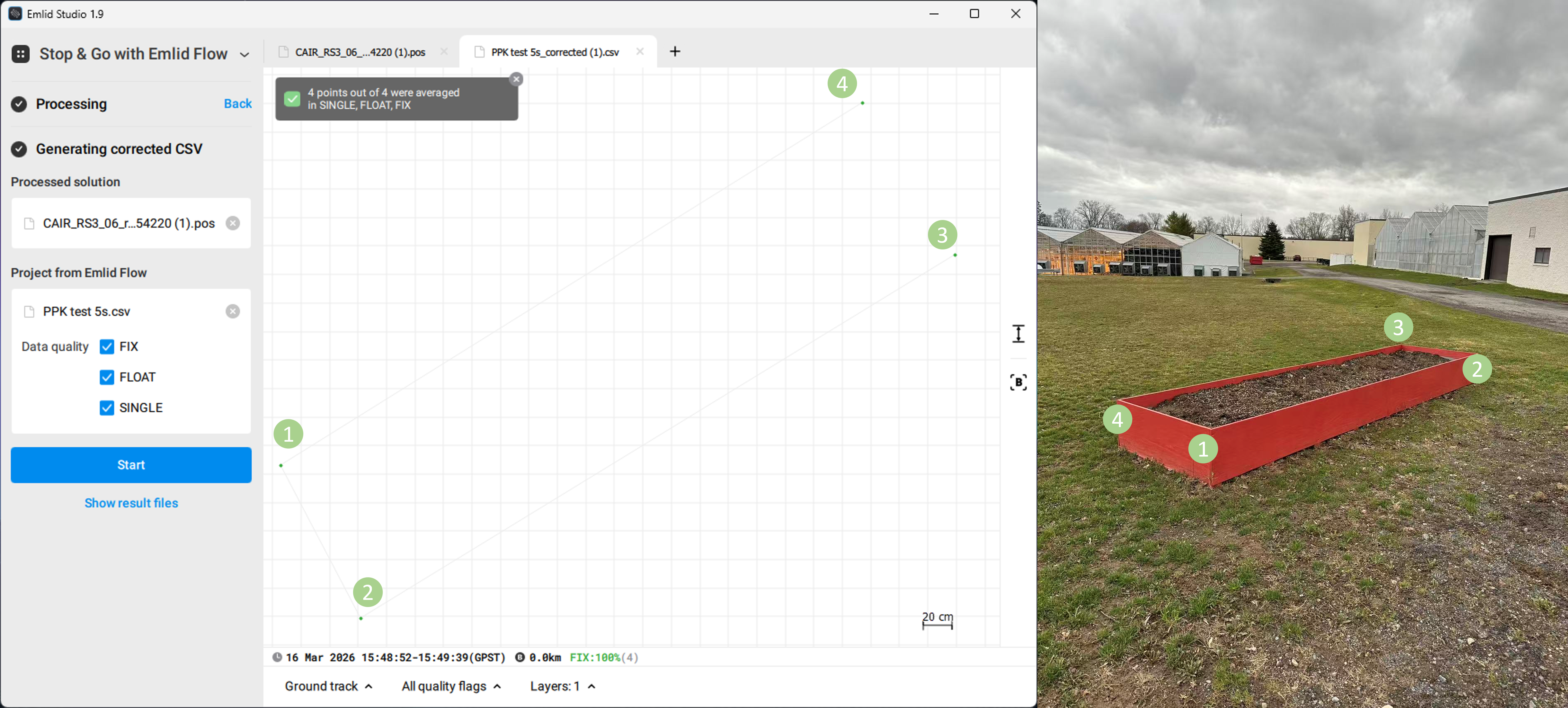
We survey four points at the four corners of a rectangle, the PPK shows precise results matched.
Supplementary
Understanding UTC Time (Very Important)
GNSS systems use UTC time, not local time.
However, field notes are usually recorded in local time, which can lead to confusion when downloading CORS data.
For example, in New York (Eastern Time, daylight saving):
| Local Time | UTC Time |
|---|---|
| 08:00 | 12:00 |
| 09:00 | 13:00 |
| 10:00 | 14:00 |
| 11:00 | 15:00 |
Conversion: Local time + 4 hours = UTC (during daylight saving time)
Always convert your survey time to UTC before downloading CORS data. Remember to check your own time zone!
Understanding CORS File Time Codes
CORS hourly files use letters to represent hours:
| Letter | Hour (UTC) |
|---|---|
| a | 00 |
| b | 01 |
| c | 02 |
| d | 03 |
| e | 04 |
| f | 05 |
| g | 06 |
| h | 07 |
| i | 08 |
| j | 09 |
| k | 10 |
| l | 11 |
| m | 12 |
| n | 13 |
| o | 14 |
| p | 15 |
| q | 16 |
| r | 17 |
| s | 18 |
| t | 19 |
| u | 20 |
| v | 21 |
| w | 22 |
| x | 23 |
Example: nywl075p.26o
| Part | Meaning |
|---|---|
| nywl | station ID |
| 075 | day of year |
| p | 15:00–16:00 UTC |
| 26 | year 2026 |
| o | observation file |
How to Choose the Correct CORS Data
The base station data must overlap with your survey time.
Example:
Survey:
- Local: 11:05–11:20
- UTC: 15:05–15:20
Required:
- 15:00–16:00 UTC →
p
Recommended practice: download two adjacent hours to avoid edge issues.
Common Reasons Why PPK Fails
Base station too far away
Atmospheric errors increase significantly with distance.- Incorrect survey time
- Using local time instead of UTC
- Downloading the wrong hourly file
- No overlap between rover and base data
- Incorrect file types
- Rover:
.yyO - Base:
.yyO - Navigation:
.yyP
- Rover:
- Invalid or corrupted CORS data This may happen if:
- The download failed (e.g., 404 error)
- The file is incomplete or empty
- The format does not match the rover RINEX version
- Insufficient observation duration Short averaging time leads to poor satellite geometry and insufficient data for correction.
Final Advice
When performing PPK surveys:
- Choose the closest CORS station
- Always convert to UTC time
- Download correct hourly files
- Ensure averaging ≥ base sampling interval
- Verify correct RINEX file types
Following these practices will ensure reliable centimeter-level positioning.